
Bitaxe Gamma: firmware update in your browser
For the Bitaxe Gamma (boards 601 and 602, BM1370 ASIC) and the Copperzilla: plug in the miner via USB-C, let the flasher detect it, install. It reads the board version and picks the matching factory image.
- 1Connect
- 2Choose firmware
- 3Install
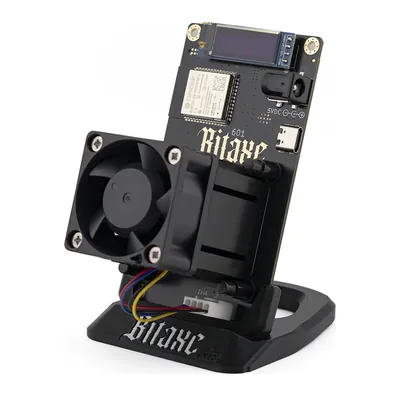
Choose your miner
Click a tile or let the flasher detect it over USB.
Recovery: bring a miner back to life
For miners that no longer boot, show a black display, run the wrong firmware or no longer join the WiFi.
- Power off. Unplug the power supply and the USB cable so the miner is completely off.
- Hold BOOT. Hold the button labelled BOOT on the board, plug the USB-C data cable into your computer and the power supply back in, release after two seconds. The miner now starts in flash mode, the display stays dark.
- Connect. Click “Connect miner” and pick the port, usually “USB JTAG/serial debug unit”.
- Check the device. If it is detected, everything is preselected. Otherwise pick the tile, or your board’s image under “All factory images”.
- Start the factory reset. This rewrites the firmware completely. Afterwards you set the miner up again.
Loading firmware list …
Bitaxe
Nerdaxe · NerdQaxe · NerdQX · NerdOctaxe
Choose firmware
Both variants come straight from the GitHub releases.
Our server passes the files through unchanged. Before writing, the flasher checks the SHA-256 checksum against the GitHub release, afterwards it verifies the flash contents.
Install type
The factory reset is the default.
All factory images (for other boards)
Always writes the full factory image (factory reset). Only use it if you know your board for sure. The flasher warns if the connected board does not match the image.
Installing
Do not unplug the miner and keep this window open.
Technical log
Bitaxe Gamma at a glance
- ASICBM1370, one chip
- Boards601, 602 (Copperzilla: 601)
- Factory images
factory-601,factory-602, plusfactory-copperzillawith OSM-OS - Update file
esp-miner.bin, the same for all Bitaxe boards - WiFi after factory reset
Bitaxe_XXXX, the name is shown on the display - Default hostname
OSM-Miner(OSM-OS),bitaxe(original)
Which factory image does my Gamma need?
The factory image depends on the board version, because it writes board version, clock and voltage into the settings storage. The version is printed on the board and shown in AxeOS under System. The flasher reads it when connecting and picks the matching image. For the update it does not matter: esp-miner.bin is the same file for all Bitaxe boards.
Copperzilla
Electrically the Copperzilla is a Gamma 601 with a large copper cooler. OSM-OS ships a dedicated factory image for it with 750 MHz and a 60 °C target temperature; pick the Copperzilla tile for it. If a release has no Copperzilla image, the flasher writes the 601 image.
Update or factory reset?
The factory reset is the default: it resets the miner to the defaults of the chosen firmware, then you set it up again through its hotspot. The flasher shows you your previous settings first, so you do not have to look anything up. With “Update”, WiFi, pool and Bitcoin address are kept and only the firmware is replaced.
Bitaxe Gamma does not start any more?
Black display, boot loop or wrong firmware: in recovery mode you put the ESP32-S3 into flash mode with the BOOT button and write the factory image again. The flasher guides you through every step.
More on updating: AxeOS update guide · Setup after a reset
Frequently asked questions
Which firmware is right for the Bitaxe Gamma?
AxeOS, either as OSM-OS or as the original from bitaxeorg/ESP-Miner. For a factory reset you need the factory image of your board version (factory-601 or factory-602), for an update the file esp-miner.bin. The flasher picks both automatically.
Can I flash the 601 image onto a Gamma 602?
Better not: the factory image writes the board version including clock and voltage into the settings storage. Use the image for your board version. The flasher reads the version before writing and asks if it does not match your selection.
Is there a factory image for the Gamma 603?
Not so far, neither for AxeOS original nor for OSM-OS. For the Gamma 603 use “Update”: esp-miner.bin is the same for all Bitaxe boards, and the board version stays in the settings storage.
How do I find the Gamma on my network after the update?
The IP address is shown on the display. Current AxeOS versions also announce themselves via mDNS as http://hostname.local; after the update the flasher shows you the matching address.
More devices
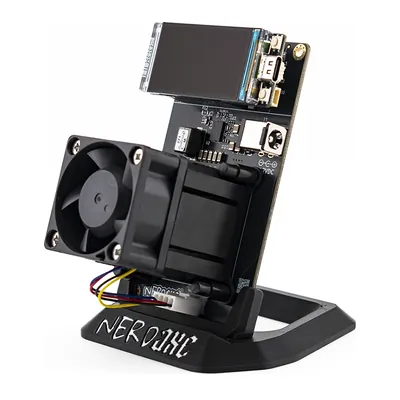 Nerdaxe Gaia
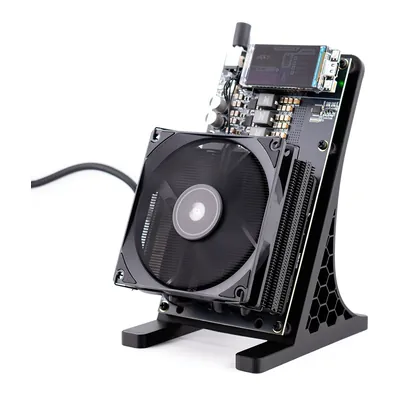 NerdQaxe++
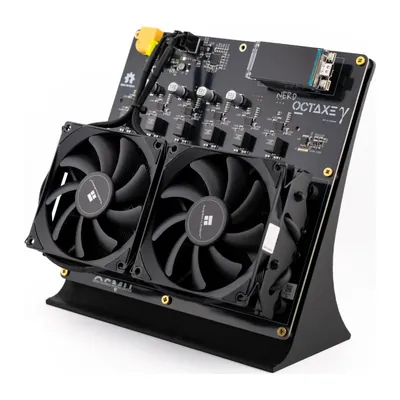 NerdOctaxe
Get a Bitaxe Gamma
Tested, in stock, shipped from the EU.